
SmartONE Support

Video Tutorials
USER MANUAL
Get User Manual
Download the full SmartONE user manual to help you make the most of your smart living experience.
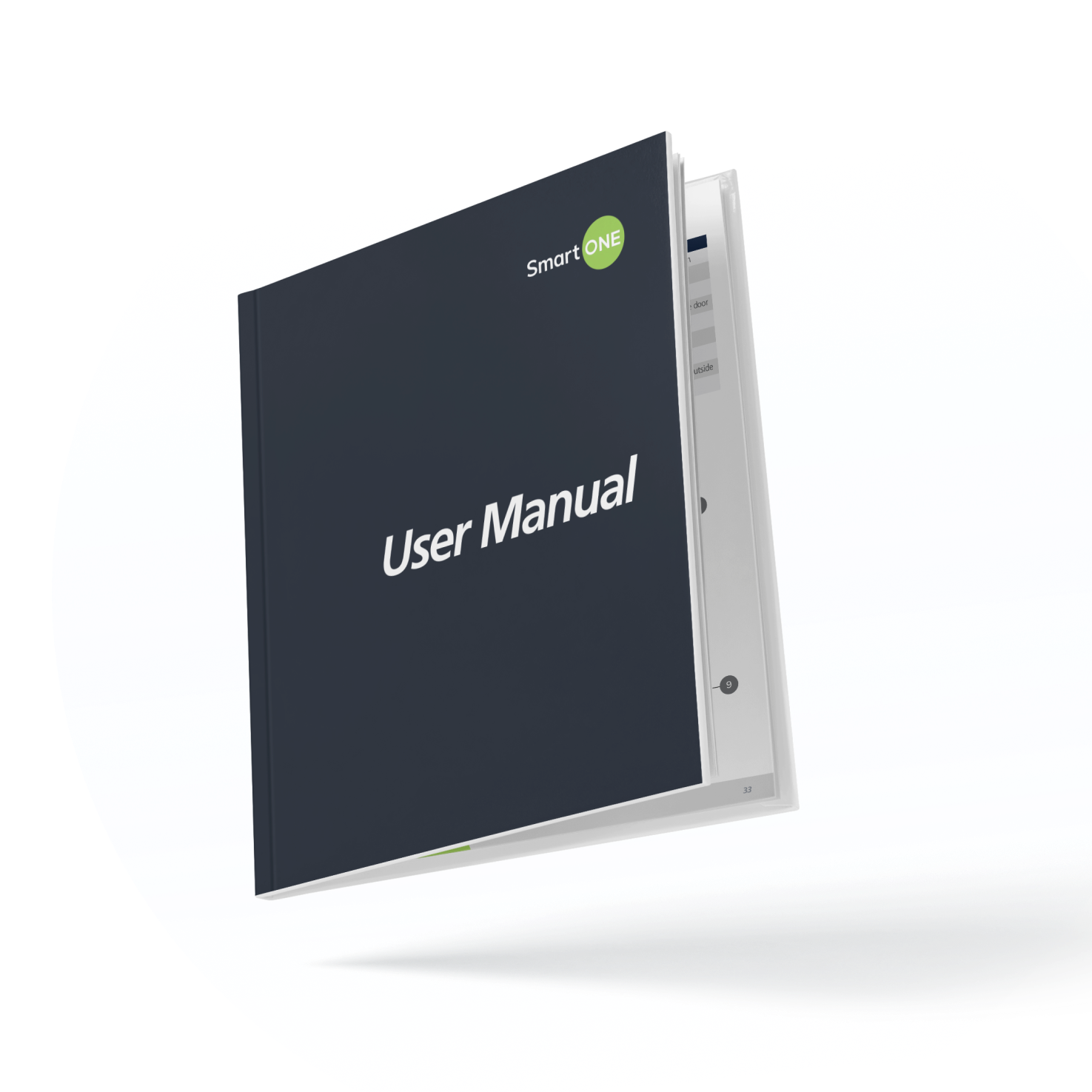
Get User Manual
Download the full SmartONE user manual to help you make the most of your smart living experience.
Download App
Let’s start by downloading the ONE! app for your smartphone. Please visit your respective store and search “SmartONE Solutions” or click on the following buttons to be redirected.

Download App
Let’s start by downloading the ONE! app for your smartphone. Please visit your respective store and search “SmartONE Solutions” or click on the following buttons to be redirected.
FAQ’s
A call from a building entrance will appear immediately on the wall pad, but there may be a slight delay before it appears in the ONE! App.
Please ensure your phone has an active internet connection and that notifications are enabled for the app.
When receiving a call from the enterphone, you can choose to answer or decline the call using either the ONE! App or the wallpad.
After answering the call, a green “Open Door” icon will appear. Press this icon to unlock the door for your visitor.
If you use the ONE! App to open the door, you will be prompted to enter your wallpad password.
If there are multiple people who have downloaded and paired the ONE! App, then they will all receive the call. Whoever answers the call first will be able to speak with the visitor and open the door for them.
For security purposes, the wall pad password is required when granting visitor access through the ONE! App.
By default, the wall pad password is set to 1234, but it can be changed at any time from the wall pad:
Main Menu ➜ Apps ➜ Settings ➜ User Configuration ➜ Password
Please note: This password/PIN is also used to disable wall pad alarms.
Yes, select communities can open certain public access doors around the building. This can be found in the ONE! App under Community called Access Control.
Yes, it is recommended to leave the thermostat on Auto for both comfort and energy efficiency.
When you are on vacation, we recommend adjusting the in-suite temperature as follows:
- Winter: Set the temperature 5–7°C lower than your normal setting
- Summer: Set the temperature 5–7°C higher than your normal setting
If your main goal is to reduce energy costs while away for an extended period, this is the most effective approach.
Please avoid turning the thermostat off completely, as maintaining a stable baseline temperature helps prevent potential damage to appliances, walls, pipes, and other in-suite systems.
This error indicates that the wallpad has detected an issue with your HVAC system.
A qualified HVAC technician will need to inspect and service the unit as soon as possible.
For assistance in arranging service, please contact your Property Manager or Building Management.
If you have a separate Salus thermostat installed in your suite, you may need to re-pair it. Please see video below.
If you only use the wall pad as your thermostat, this may indicate a communication issue between your HVAC system and the wall pad. Please follow the troubleshooting steps in the video below.
If you have a separate Salus thermostat installed in your suite, you may need to re-pair it. Please see video below.
If you only use the wall pad as your thermostat, this may indicate a communication issue between your HVAC system and the wall pad. Please follow the troubleshooting steps in the video below.
The ON/OFF switch is located on the bottom right side of the wall pad. Please always ensure your wall pad is ON so that no service is disrupted.
Please watch the tutorial video below to learn how to change your wall pad password.
The code being requested is your wallpad password. By default, it is set to 1234. If this code does not work, it may have been changed previously.
If needed, you can dismiss the alarm screen by restarting your wallpad using the power switch located at the bottom. After the wallpad reboots, you can update or reset your password by navigating to:
Apps ➜ Settings ➜ User Configuration ➜ Password
From there, you can set your wallpad password to any 4-digit code of your choice.
Your wall pad is compatible with most Zigbee protocol devices. It is recommended that you check with your property management team or with SmartONE Support (support@smart-one.ca) prior to purchasing.
We currently do not connect to any smart home devices but have a plan to integrate in the future.
Temperature limits are set by property management and cannot be changed.
Please ensure that notifications are enabled in the ONE! App.
To manage your notification preferences, navigate to:
Settings ➜ Notifications
We recommend enabling all notification options to ensure you receive important updates, alerts, and calls from your community.
To register your personal vehicle, please contact your Property Manager and provide your licence plate information for registration.
To register a visitor’s vehicle, use the Visitor Parking feature in the ONE! App. SmartONE has partnered with Locomobi to provide visitor parking management directly through the app, making it easy to register and manage guest parking.
For support with parking or visitor parking, please contact Locomobi at:
SmartONE does not have the ability to remotely unlock public community doors or suite doors.
If you are having trouble accessing a public community door, you can try one of the following methods:
- Use the Access Control* feature in the ONE! App.
- Use your fob.
- Call your own suite from the enterphone and answer the call in the ONE! App to grant yourself access.
If you are having trouble accessing your suite door, you can use:
- Your PIN code
- Your fob
- Your fingerprint **
- The Suite unlock feature in the ONE! App
* Available in select communities.
** Available on select door lock models.
If you encounter any issues with the ONE! App, we recommend first restarting your smartphone.
If the issue persists, try unlinking and then re-linking the app to your wall pad:
- Open the ONE! App.
- Navigate to Settings ➜ Connected Hubs ➜ Disconnect from wall pad.
- Follow the prompts to disconnect.
- Once disconnected, pair the app with the wall pad again using the original setup process.
While you can share ONE! App accounts, everyone is recommended to create their own account as more than one person can sync with one wall pad.
At this time, you can only be linked to one suite at a time.
To connect to a different suite, you must first unlink your current suite in the ONE! App:
- Open the ONE! App.
- Navigate to Settings > Unlink.
- Follow the prompts to unlink your current suite.
- Once unlinked, complete the setup process to link to the new wall pad.
After linking is complete, the new suite will be available in the app.
Please refer to our tutorial video on changing your door lock PIN code below.
We recommend using high-quality alkaline batteries such as Duracell, Energizer, or HDX.
Please do not use low-quality alkaline batteries or carbon-zinc batteries.
For more information, please watch the battery maintenance video below.
If a number is flashing on your door lock, it indicates an error code.
Error Code Guide:
A flashing red battery icon means it is time to replace the batteries. When this appears, remove all old batteries and replace them with 8 new, high-quality AA alkaline batteries. We recommend Energizer, Duracell, or HDX.
If your door does not lock, this may indicate that the batteries need to be replaced, or there may be an issue with the door frame. For door frame issues, please contact your property management team.
Yes, you can find this in the ONE! App under My Home, labeled Suite. Press the Unlock button to unlock your suite door. It may take up to 5 seconds for the door to unlock.
After unlocking, if the door is not opened within 10 seconds, the DDL will automatically lock again.
Please note: SmartONE does not have the ability to remotely open doors for any community.
This means the registration lock feature is enabled on your DDL. To disable it:
- Step outside your suite and lock the door.
- Enter your PIN code (do not press * at the end).
- Press # once.
- Press # again.
- Press the number 8.
This will restore your ability to program PINs, fobs, and fingerprints.
To register a fingerprint:
- Open the door and remove the battery cover to access the Registration button.
- Press the Registration button, then press 4 on the keypad.
- When prompted, place your finger on the sensor 4 times in a row.
- After the fourth scan, that fingerprint is saved.
You can repeat the process to add up to 4 fingerprints, or press the Registration button again to finish.
*Only available at select communities.
Please follow the steps below:
- Open your door and remove the battery cover to access the Registration button.
- Press the Registration button. You will hear a tone and the keypad will illuminate.
- Press the number 7.
- Press and hold the [#] button for 5 seconds to delete all registered smart fobs.
Any fobs previously registered to your DDL will no longer be able to access your unit.
Please follow the steps in the video below to learn how to register your FOB.
You may need to re-pair your DDL to your wall pad. Please follow the steps in the video below.
Popular Playlists
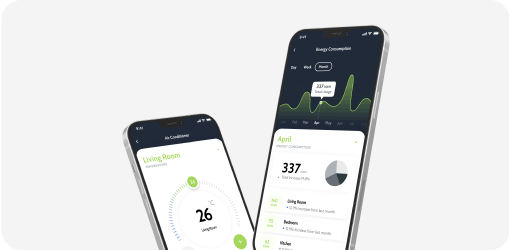
ONE! APP
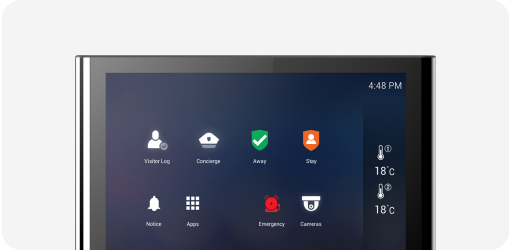
WALL PAD
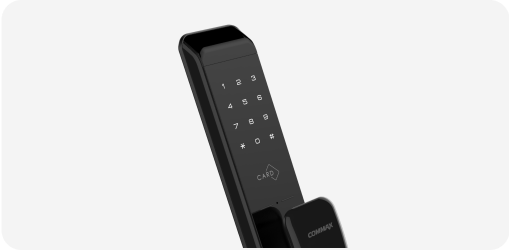
DIGITAL DOOR LOCK
PAIRING DEVICES
GET IN TOUCH
Need More Help?
Our team is just an email away. Reach out to us directly
for personalized assistance with your SmartONE experience.
Need More Help?
Our team is just an email away. Reach out to us directly for personalized assistance with your SmartONE experience.